Send workflow alerts to Microsoft Teams
When a workflow fires, you can post the alert straight into a Microsoft Teams channel, so your whole team sees it where they already work: no inboxes to watch, and the channel keeps a running history of every alert.
This recipe connects the workflow Webhook action to Teams using the Workflows app built into Teams. It takes about ten minutes, needs no coding, and involves exactly one copy-paste of a prepared snippet.
Do you have this? The Webhook action is a plan feature; if the Webhook tile is locked or missing from your workflow builder palette, ask your provider. On the Teams side you need permission to add workflows to the channel, which most team members have unless your organization restricts it.
How it works
- Teams gives you a personal web address (a webhook URL) that posts whatever it receives into your channel.
- You paste that URL into a Webhook action on your workflow.
- When the workflow fires, the platform sends your alert message to that URL, and it appears in the channel as a card.
Three parts to set up, then a test.
Part 1: create the Teams webhook
-
In Teams, go to the channel you want alerts in, click the three dots (...) next to the channel name, and choose Workflows.
-
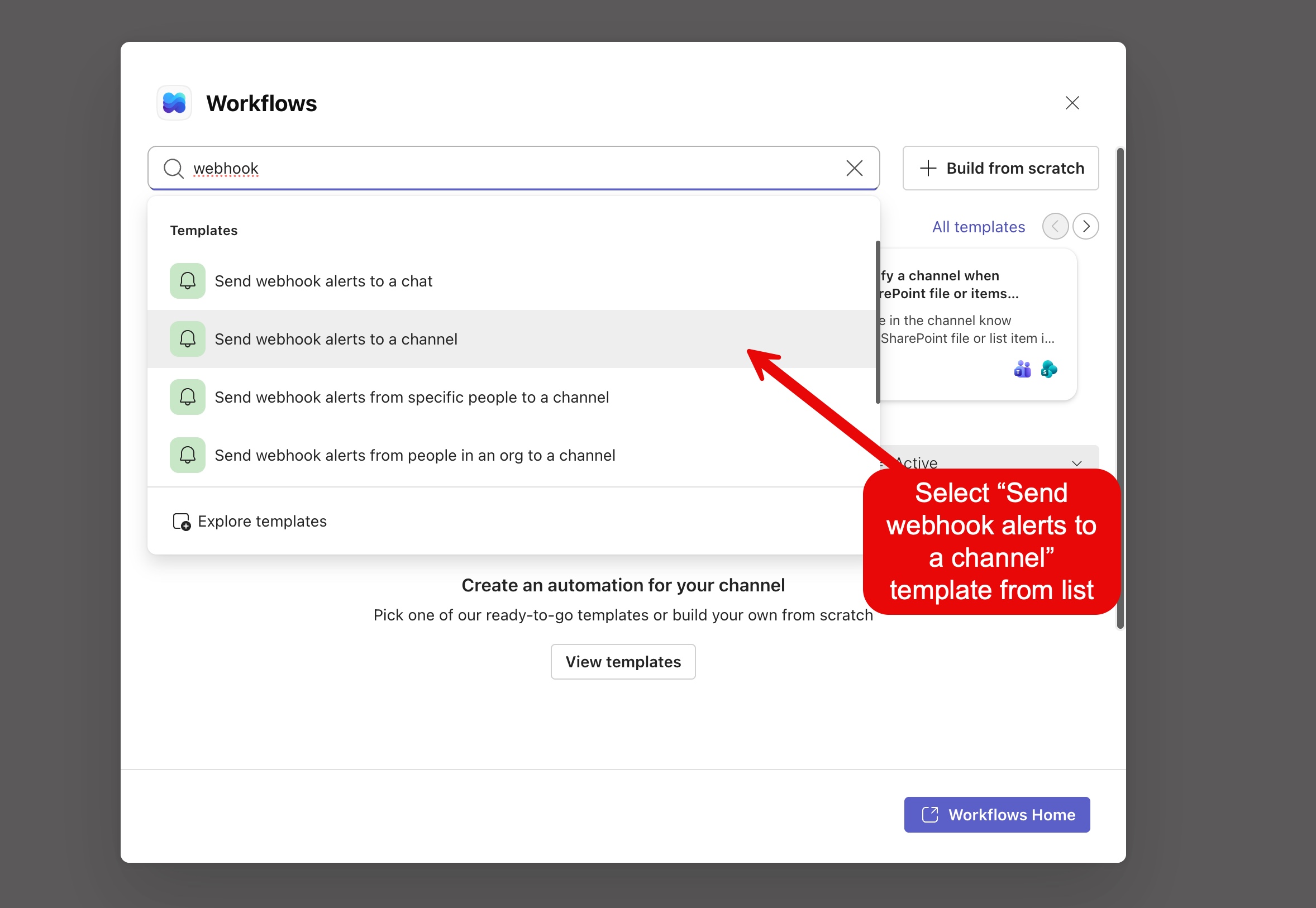
Search for "webhook" and select the Send webhook alerts to a channel template.
-
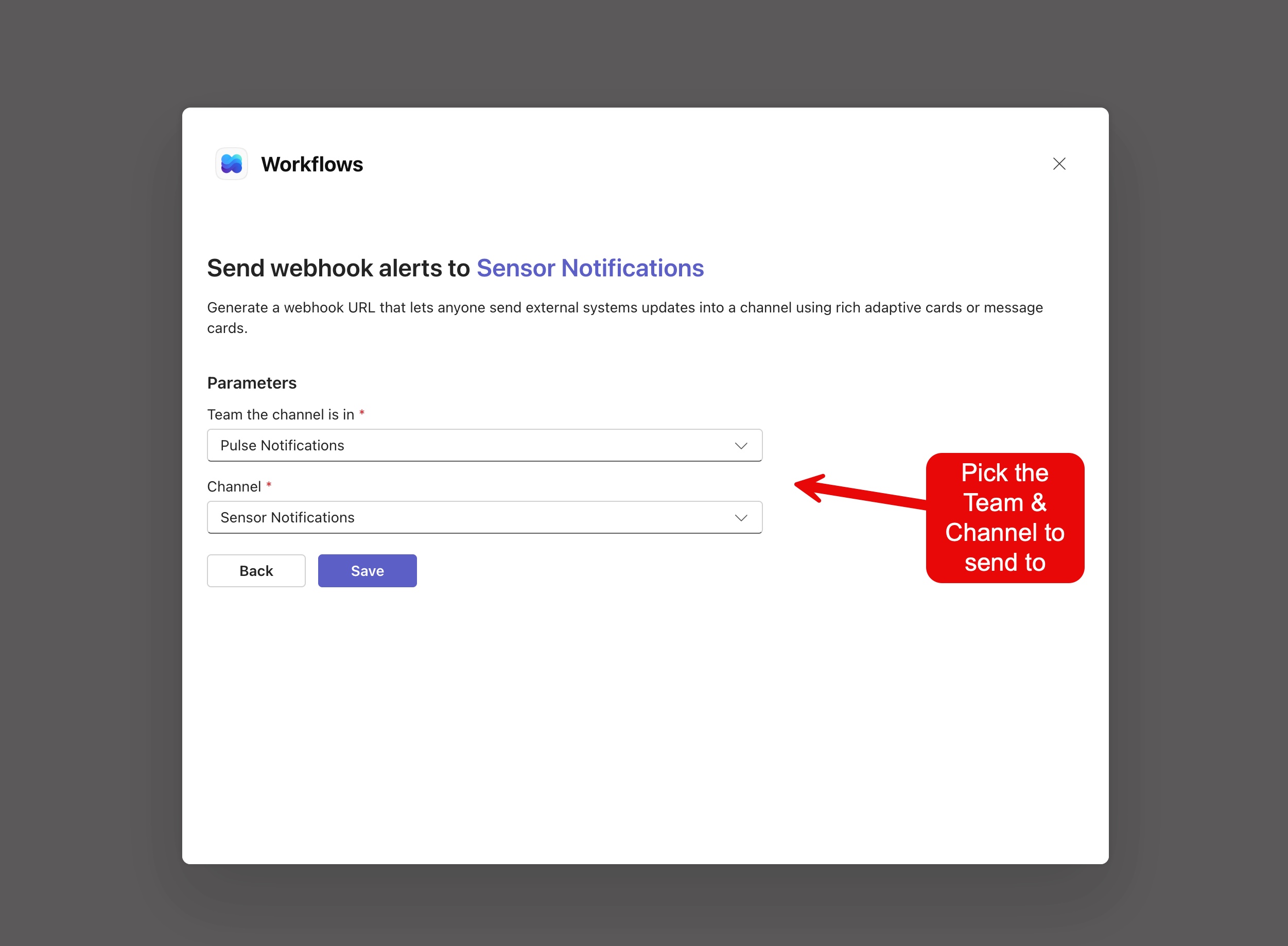
Give the workflow a name, confirm the team and channel it should post to, and save it.
-
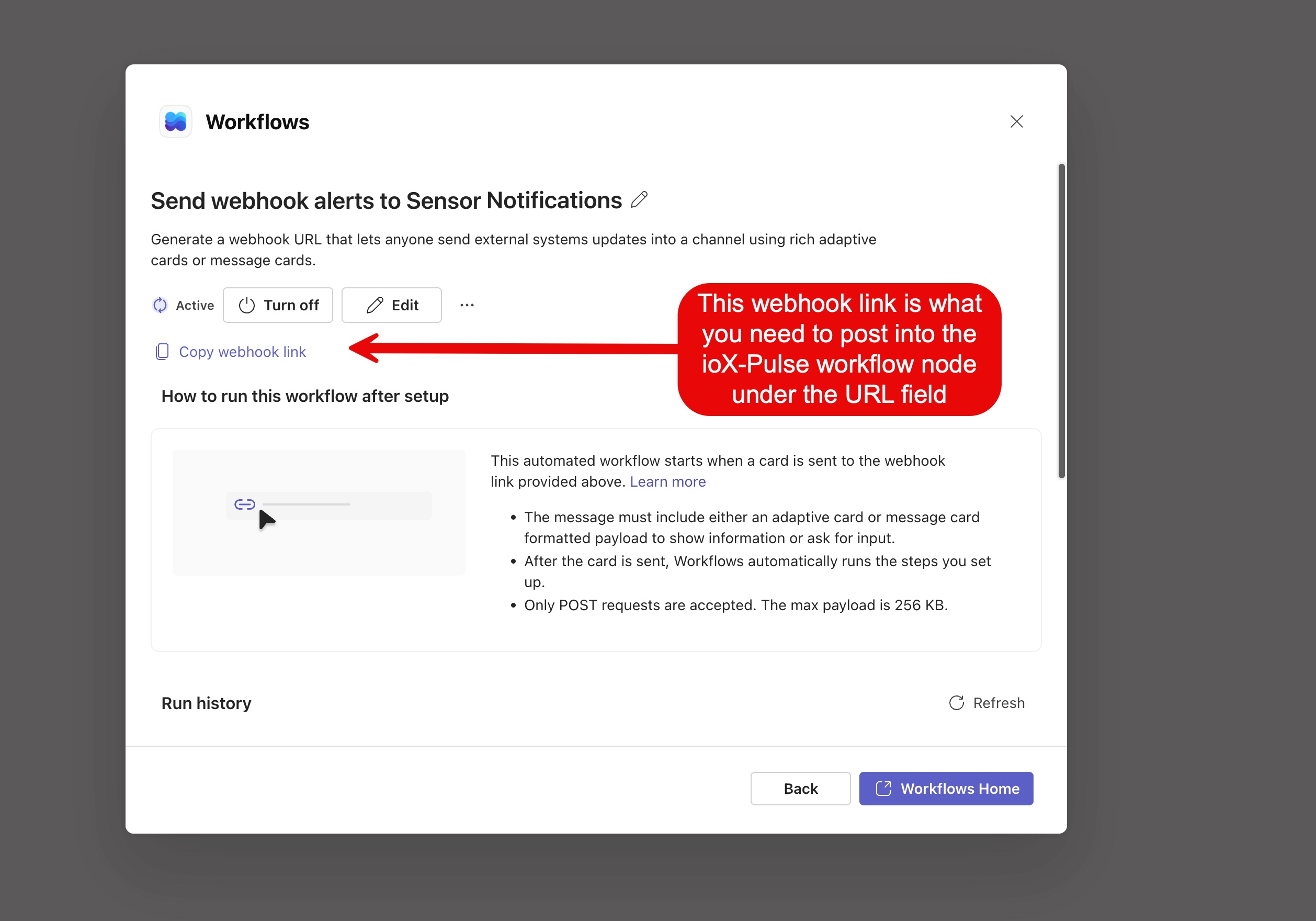
On the final screen, click Copy webhook link and keep the URL handy; this is the address your workflow will send alerts to.
Part 2: teach the flow to read your alert text
Out of the box, the Teams template expects the sender to deliver a fully formatted Teams card. Workflow alerts arrive as a simple message instead, so you'll point the flow at the alert text with one prepared snippet. This is the only technical step, and it's copy-paste.
-
Go to make.powerautomate.com and sign in with the same Microsoft account you use for Teams.
-
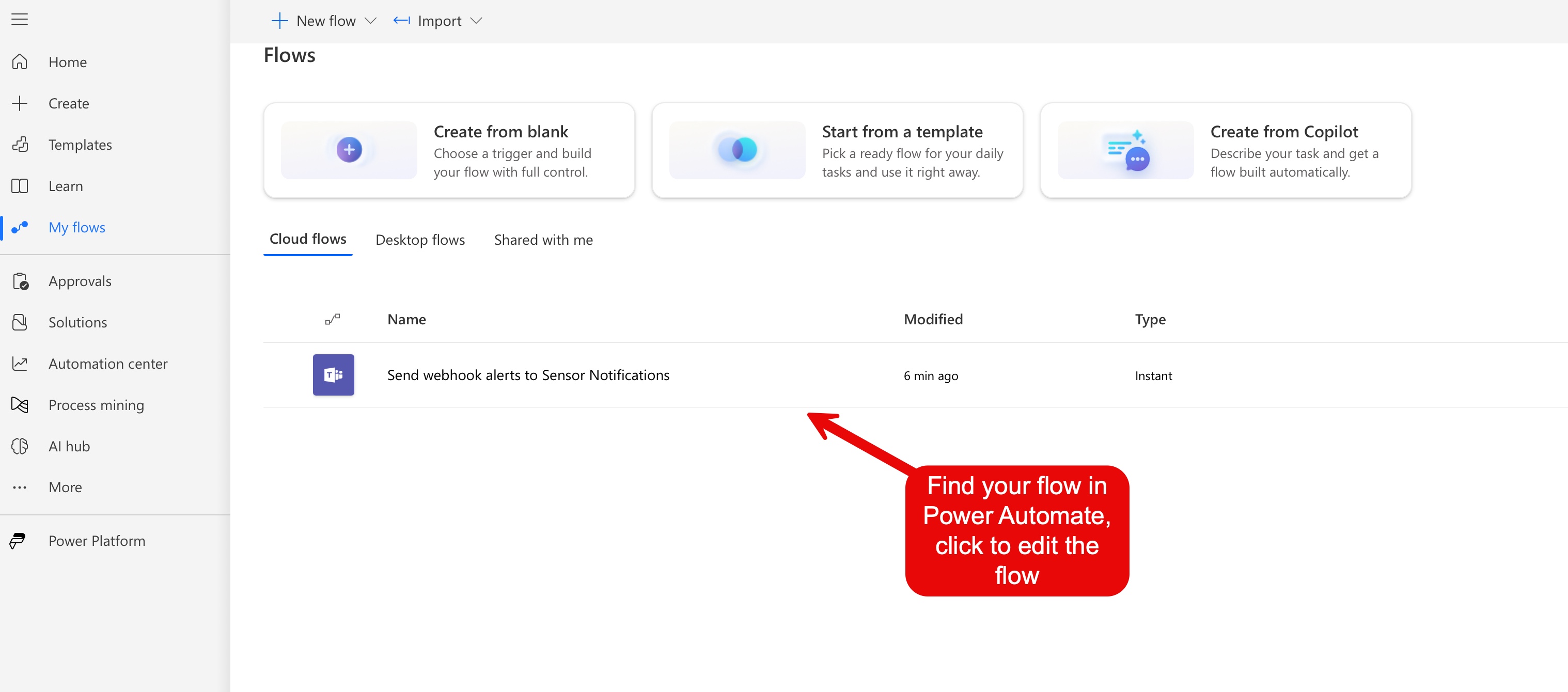
Open My flows, click the flow you just created, then click Edit.
-
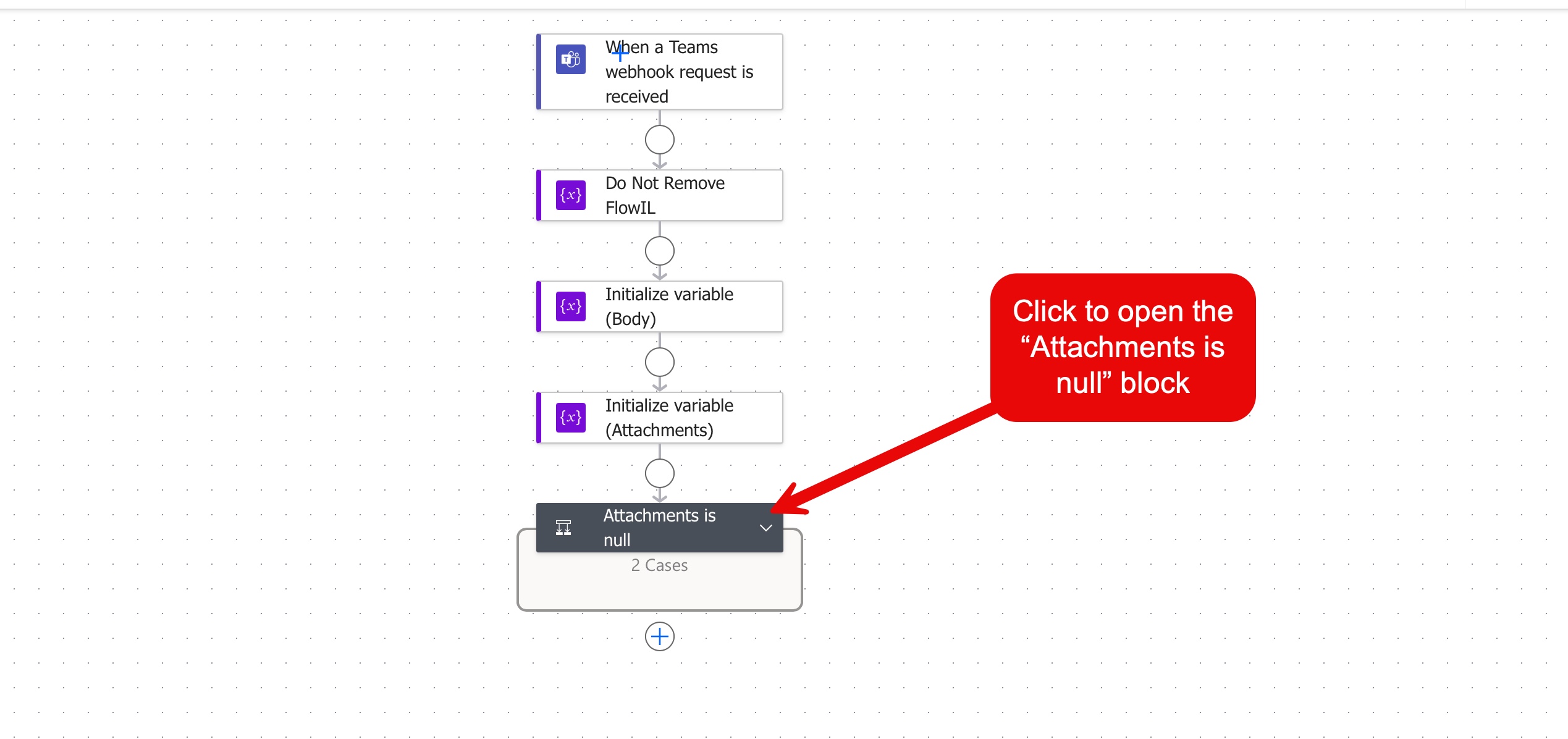
On the flow canvas, expand the Attachments is null block at the bottom.
-
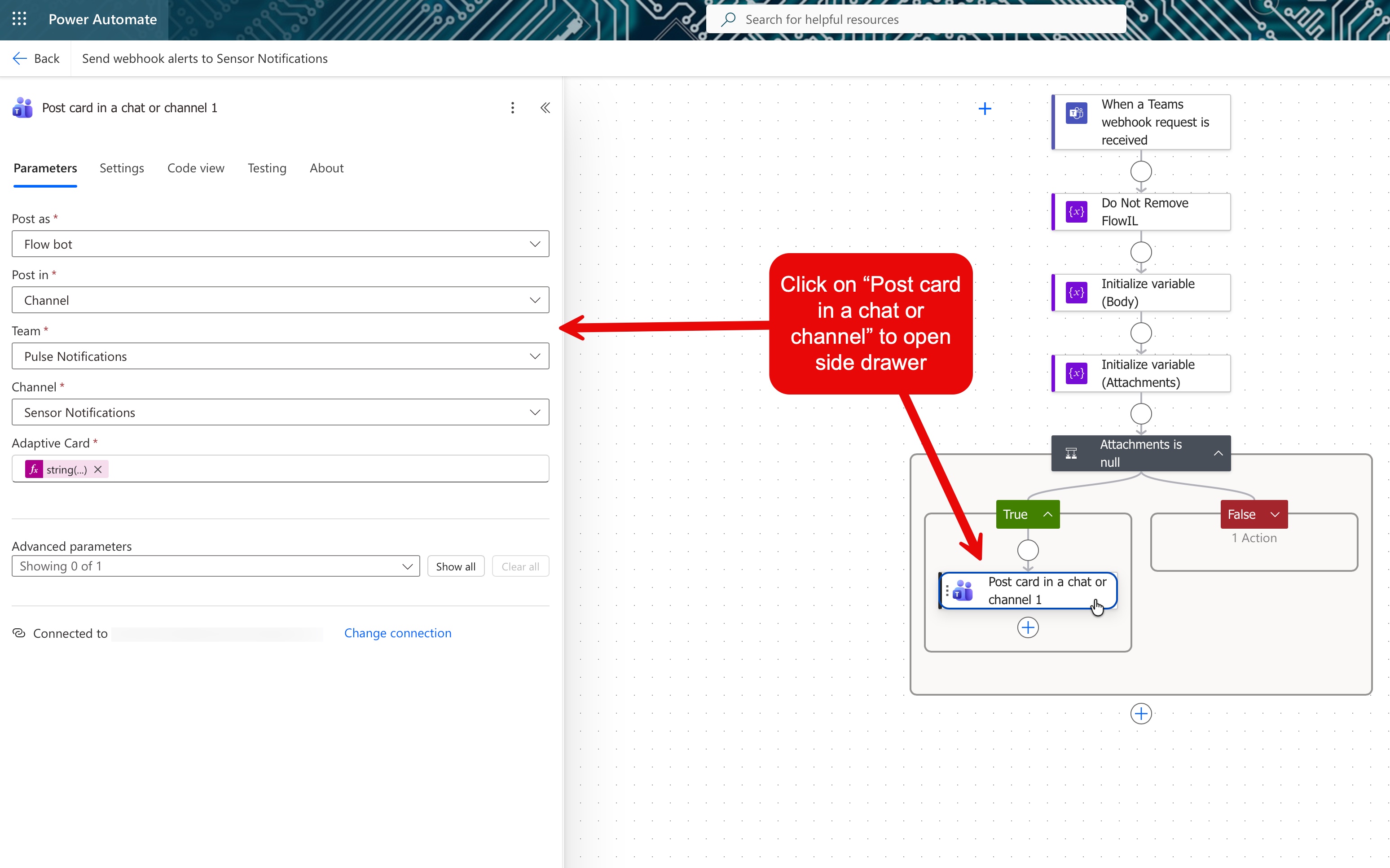
Inside its True branch, click the Post card in a chat or channel action to open its settings.
-
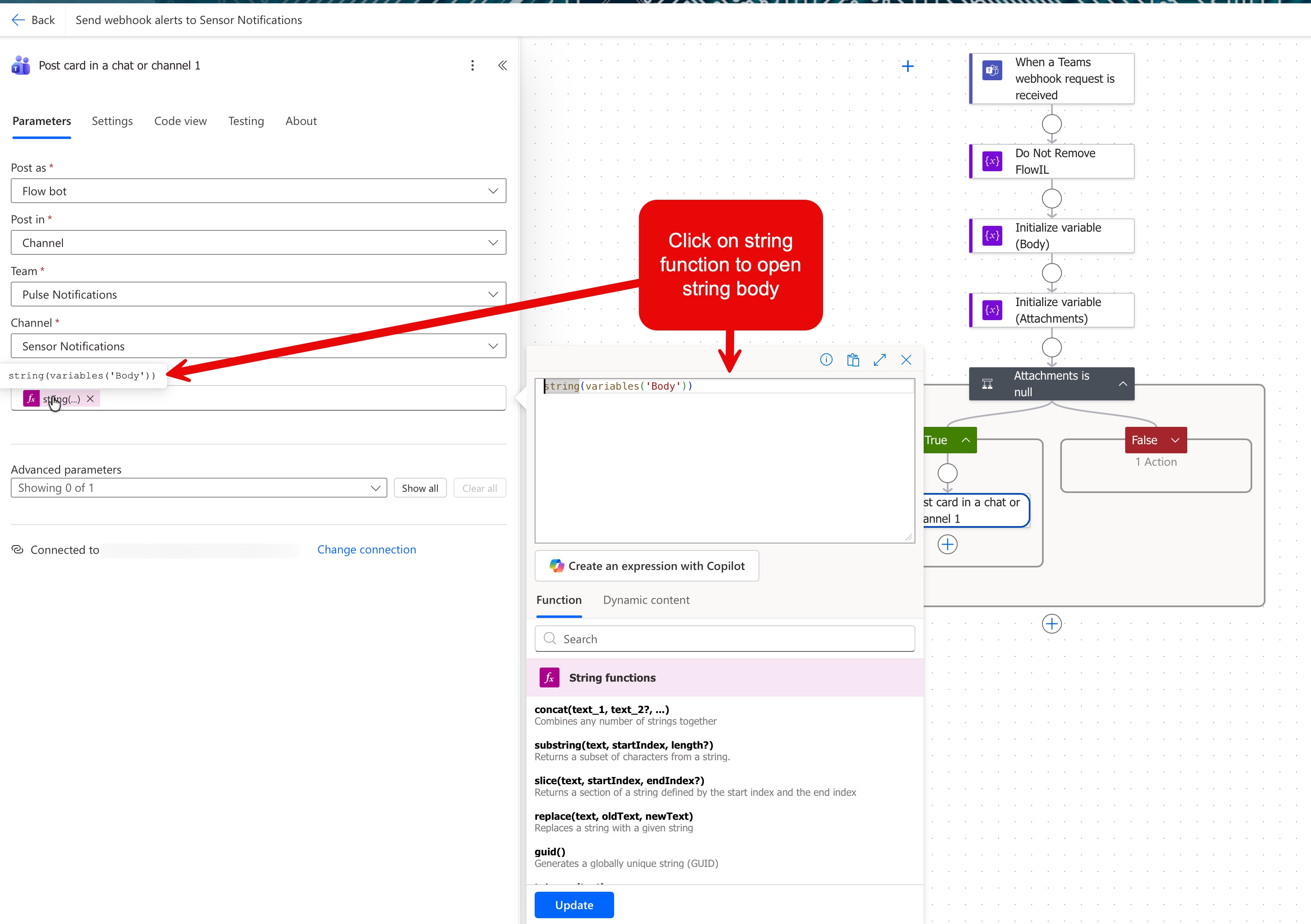
In the Adaptive Card field, click the purple string(...) token to open the expression editor.
-
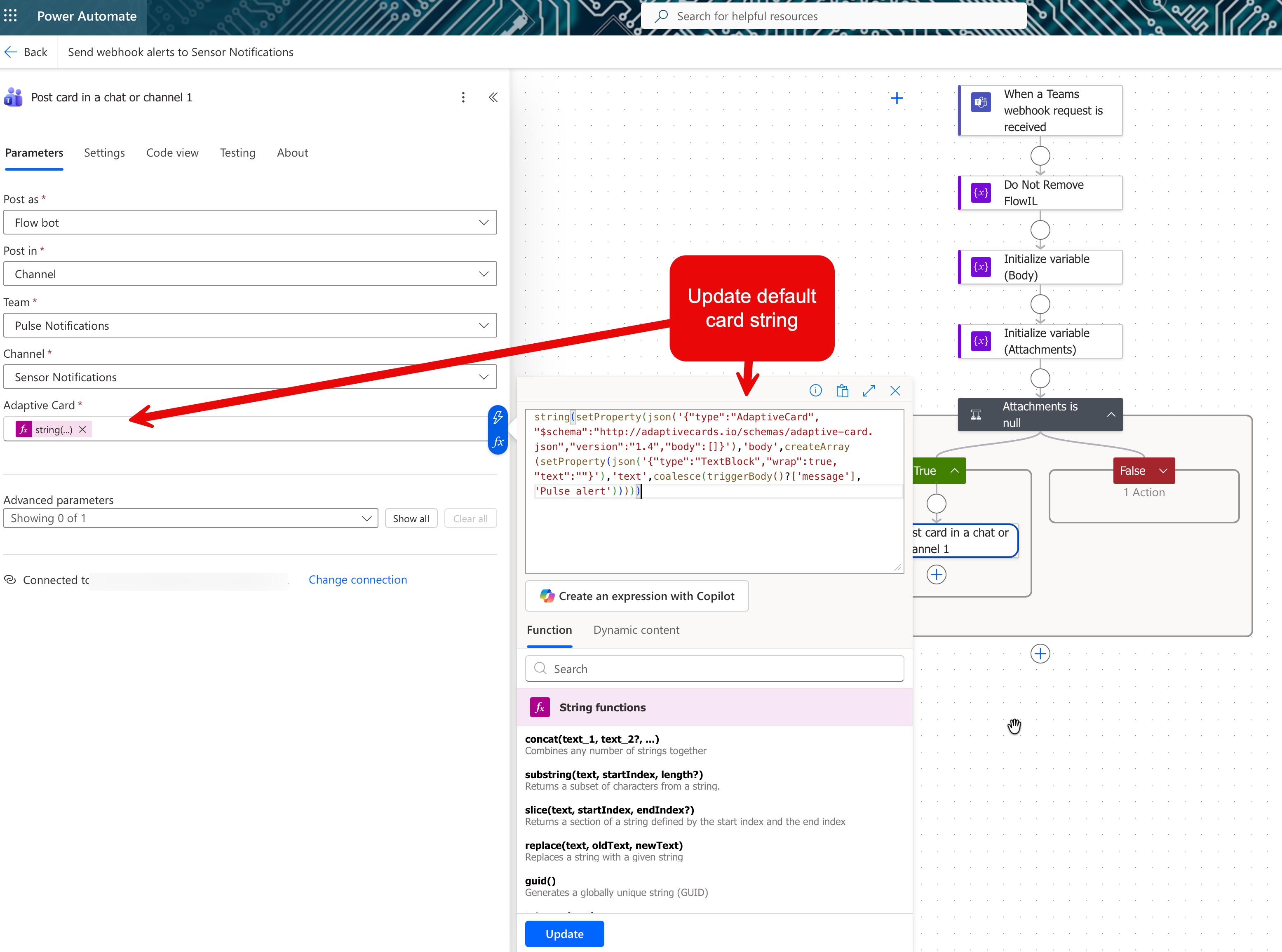
Select everything in the expression box and replace it with this snippet, exactly as written, on one line:
string(setProperty(json('{"type":"AdaptiveCard","$schema":"http://adaptivecards.io/schemas/adaptive-card.json","version":"1.4","body":[]}'),'body',createArray(setProperty(json('{"type":"TextBlock","wrap":true,"text":""}'),'text',coalesce(triggerBody()?['message'],'Pulse alert'))))) -
Click Update at the bottom of the expression panel.
-
Save the flow.
What the snippet does, in plain terms: it builds a simple alert card and fills it with the message text from each alert. If an alert ever arrives without a message, it posts "Pulse alert" instead of failing silently.
Part 3: add the Webhook action to your workflow
-
Open the workflow that should feed the channel (or create one), and drag the Webhook action onto the canvas, connected after your trigger and conditions like any other action.
-
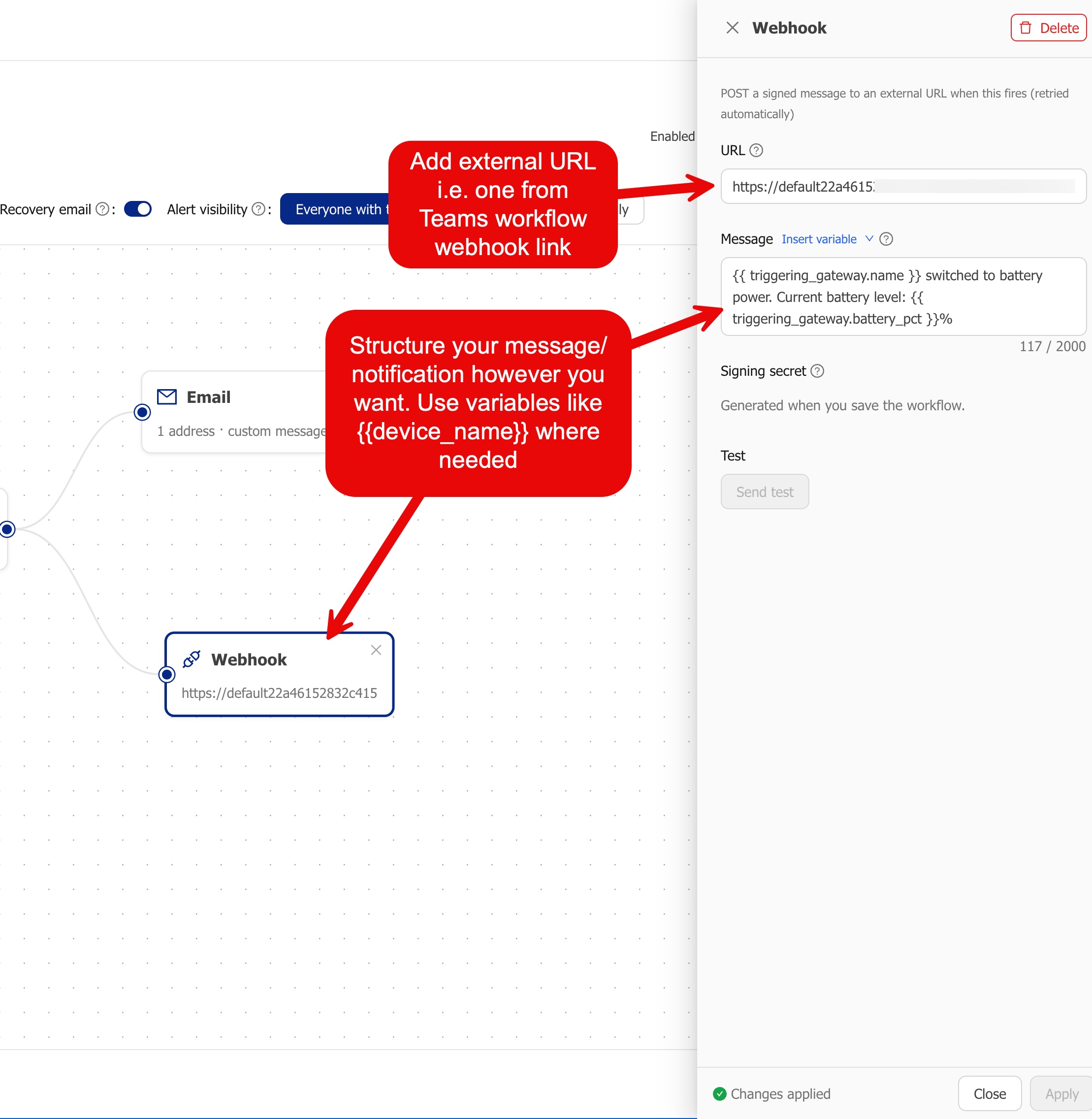
Paste the Teams link from Part 1 into the URL field.
-
In the Message field, write the text you want to appear in the channel. Use Insert variable to drop in live values like the device name or the reading that fired; see Message variables for the full token list.
-
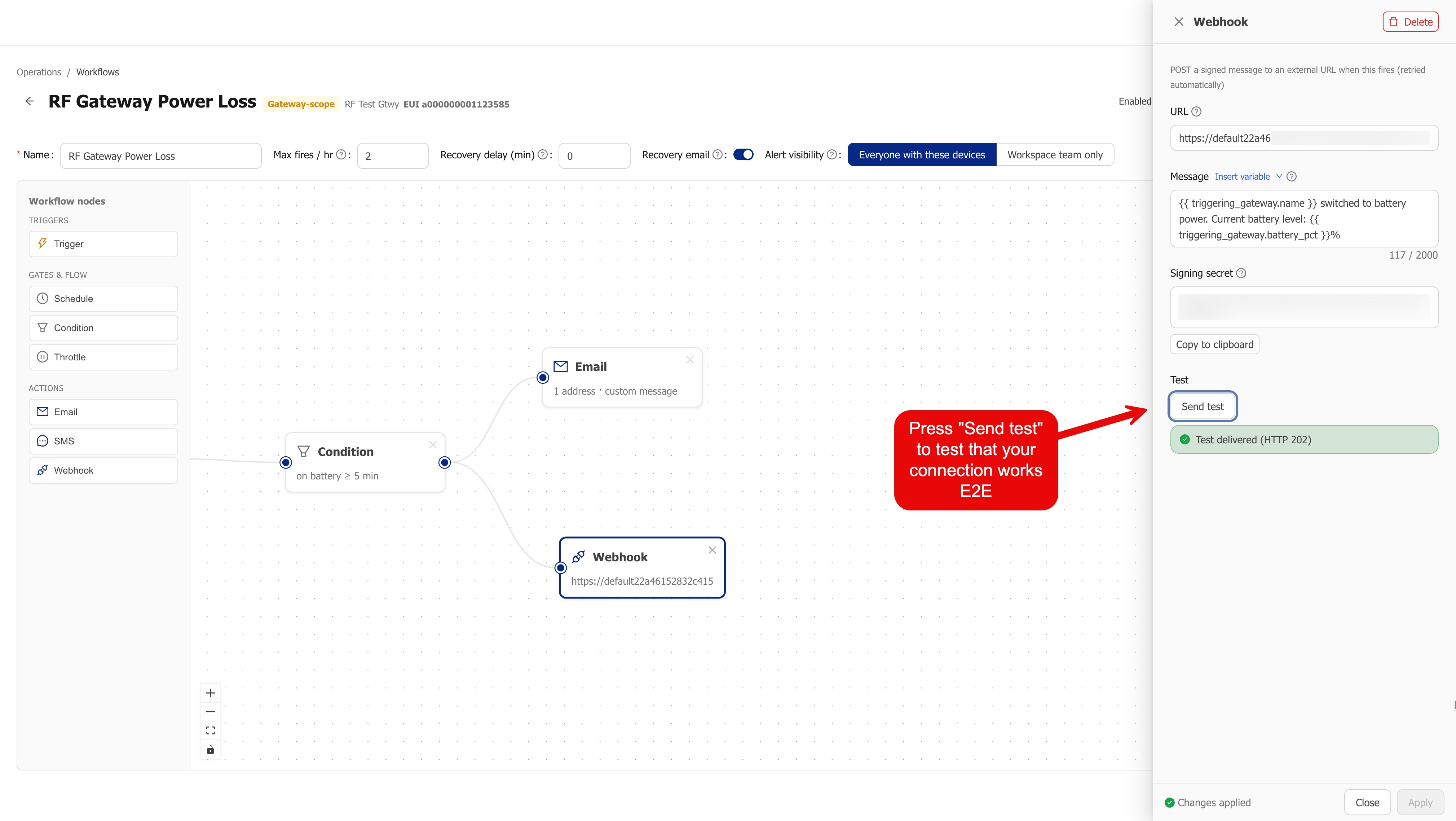
Save the workflow. The first save generates the node's signing secret and unlocks the Send test button. (This Teams flow doesn't check signatures, so for this recipe you don't need to copy the secret anywhere.)
Part 4: test it
-
Open the Webhook node and click Send test. You should see a delivered confirmation within a few seconds.
-
Check the Teams channel; the card should appear moments later.
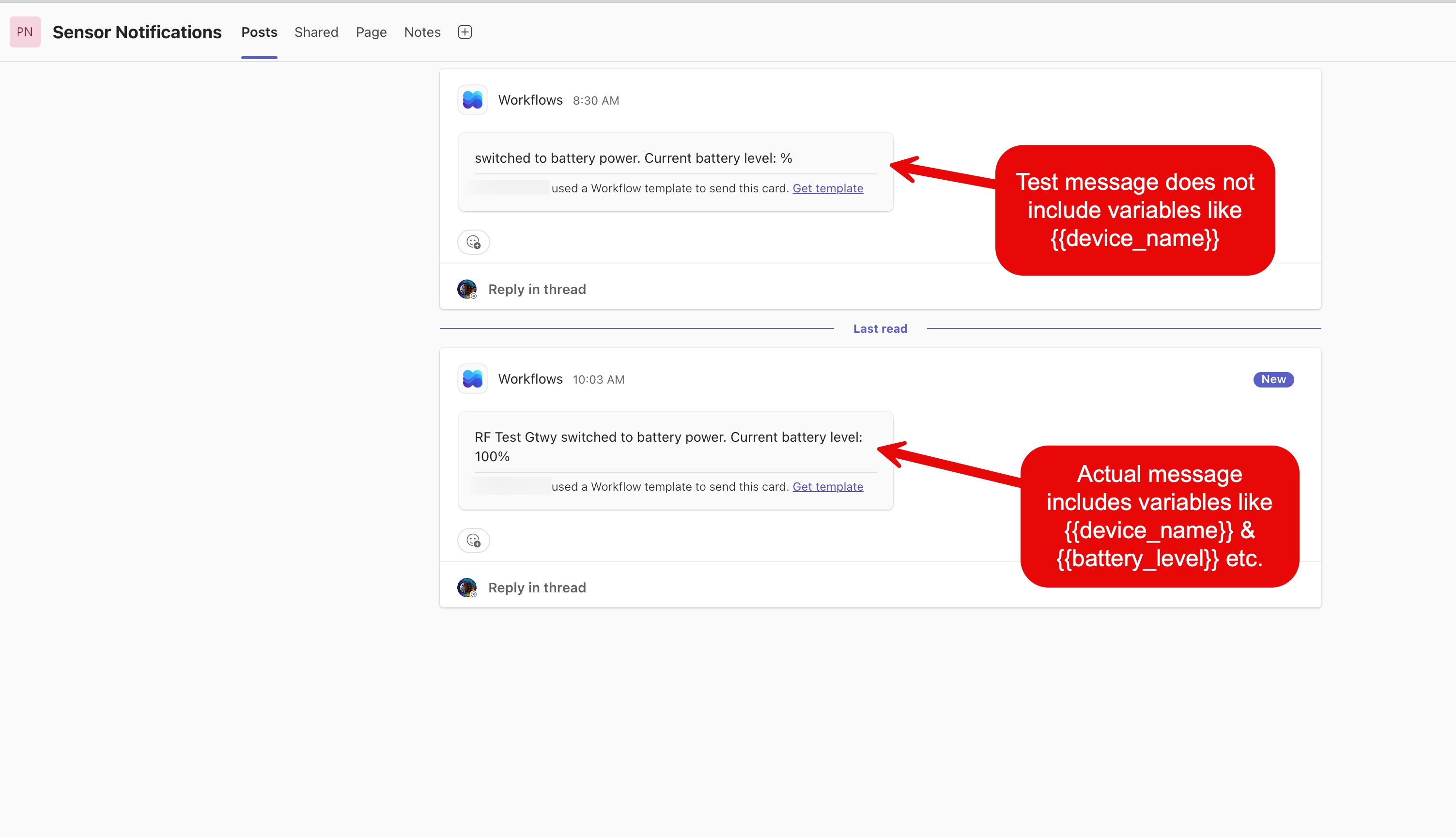
Test sends use placeholder data, so variables in your message can come through blank or generic, as in the first card above. When the workflow fires for real, every variable fills with live values, as in the second card.
If something doesn't arrive
- The test says delivered, but no card appears in Teams. The Teams flow received the alert but failed while posting it, almost always because the snippet in Part 2 wasn't applied. In Power Automate, open the flow and check its run history; a failed run shows exactly which step went wrong.
- The test fails in the workflow builder. Re-copy the webhook link from Teams and make sure the URL pasted completely; it must start with
https://. - Cards arrive for tests but stop later. Someone may have turned the flow off or deleted it in Teams or Power Automate, or the account that created it left the team. Re-enable or recreate the flow, and update the URL on the Webhook node if it changed.
- The Webhook tile is locked or missing. It isn't part of your plan; ask your provider.