Account settings
Your account settings live behind the user menu (your name or initials in the top-right corner). They cover your profile, your password, your two-factor security, and (if you're a Workspace Admin) the colleagues in your workspace.
Opening account settings
Click your name in the top-right, then Settings. The settings page has several sub-pages: Profile, Workspace, Security, and (for Workspace Admins) Members and Audit log.
Your profile
The Profile page lets you change:
- Name, as shown in the platform and on anything you send (like alert acknowledgements).
- Phone, used only for contact and never displayed to other users.
- Timezone, which controls how every timestamp in the platform is displayed to you, including the times in alert emails sent to you.
- Date and time format, regional preferences for how dates are shown.
- Language, if your provider has enabled more than one.
- Theme, light, dark, or follow your operating system.
- Default landing page, the page you land on after signing in to this workspace. Choose a Fleet tab (Overview, Device List, Gateways, or Fleet Map) or any specific dashboard you can see as your own home. Leave it blank to use the default, Fleet: Overview. If a dashboard you picked later becomes unavailable to you, you simply land on the next best option instead. Your provider can also set this for you, but you can change it here at any time.
Changes save when you click Save. The page reloads in your new theme or language immediately.
Notifications
Below the landing page picker, the workspace preferences card has channel-level notification toggles:
- In-app notifications, the bell icon in the header. Turning this off hides the bell and its unread counter entirely; you can still open the Notifications page from the sidebar.
- Email notifications. When off, alert emails from workflows stop going to your address, even if you're listed in a notification group.
- SMS notifications. Only shown when your plan includes text messages; requires a phone number on your profile.
These are master switches for the workspace you're signed in to: per-rule subscriptions (notification groups) still apply on top of them, and other workspaces you belong to keep their own settings. A Workspace Admin can also change these for you from the Members list, and you can change them back yourself at any time.
Your workspace
The Workspace page (under Settings → Workspace) shows the name of the workspace you're currently in. This is the name that appears in the workspace switcher, the Members list, and across your account settings.
If you're a Workspace Admin, you can rename the workspace, for example to change a placeholder set up during testing into your team's real name:
- Open Settings → Workspace.
- Click Rename.
- Enter the new name and click Save.
The new name takes effect immediately for everyone in the workspace. Renaming is safe: your devices, dashboards, rules, and history are untouched; only the display name changes.
Permission required: Workspace Admin.
Changing your password
On the Security page, click Change password. You'll need to enter your current password, then your new one twice.
Password rules:
- At least 12 characters.
- At least one uppercase letter, one lowercase letter, and one digit.
When you save, every other browser or device you were signed in on is signed out. You stay signed in on the device you used to make the change.
If you forgot your password
From the sign-in page, click Forgot password? Enter your email address and click Send reset link. If your email is recognized, you'll receive a message with a one-time link.
The link expires after 1 hour. If it expires, just request another.
For security, the platform won't tell you whether the email address it received is registered. If no message arrives after a few minutes, check the spelling and try again, and check your spam folder.
If your account is locked
After 3 failed sign-in attempts in a row, the platform locks your account to protect it. You'll see a message saying the account is locked and to contact an administrator.
There's no self-service unlock. Ask your Workspace Admin (or, if you're a Workspace Admin yourself, your provider) to unlock you. They'll also send you a fresh password-reset link as part of the unlock.
Once unlocked, change your password before signing in everywhere again. A reset is the cleanest way to make sure no old tab tries to sign in with the old password and re-locks you.
Signing in with Google
If your workspace allows it, the sign-in page shows a Sign in with Google button under the password form. Click it, pick your Google account, and you land in the platform without typing a password. Google only shares your name, profile picture, and email address; nothing else in your Google account is touched.
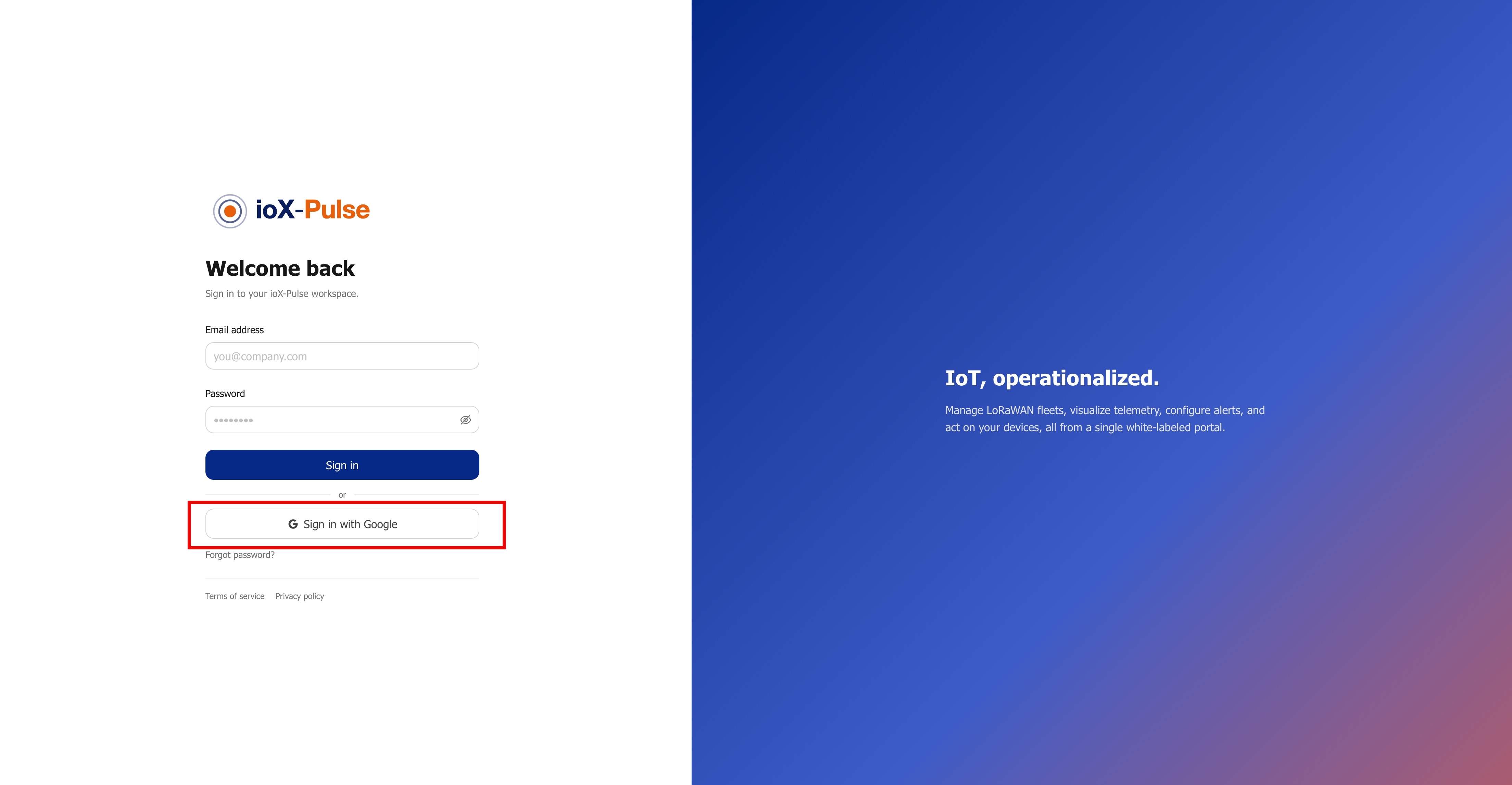
On the main sign-in page the button is always shown. If your email belongs to more than one workspace that allows Google sign-in, you choose which one to open after Google confirms who you are; you can move between them later with the workspace switcher.
Two things to know:
- You must already be a member. Google sign-in does not create accounts. You need an invitation from your Workspace Admin first, and you activate it the usual way (set a password), after which either sign-in method works. The Google account you pick must use the same email address you were invited with.
- Your password still works. Google sign-in is an extra way in, not a replacement. If Google is ever unavailable, or your Google account changes, you can still sign in with your email and password, and Forgot password? still works.
If you have two-factor security turned on, you are still asked for your code after Google confirms who you are.
The mobile app signs in with your email and password only.
If Google sign-in fails
The sign-in page tells you why:
- We could not find a workspace that lets this Google account sign in. Shown on the main sign-in page when no workspace you belong to allows Google sign-in for the account you picked. Check you chose the right Google account, sign in with your password, or ask your Workspace Admin.
- This Google account is not a member of this workspace. The Google account you picked is not on the member list here. Pick the account that matches your invitation, or ask your Workspace Admin for an invitation. This is also what you see if your membership was removed.
- Google sign-in is limited to specific email domains. Your Workspace Admin allows only certain email domains. Use your work Google account, or your password.
- Google sign-in could not be completed. Something went wrong between Google and the platform, usually a link that sat open too long. Try again from the sign-in page.
If your Google account was changed (for example, your company gave your email address to someone else), ask your Workspace Admin to Disconnect Google on your account; the next Google sign-in links the account afresh.
If your company manages Google Workspace and blocks apps it has not approved, your Google admin needs to allow the platform once: see Allowing sign-in from Google Workspace.
Two-factor security (MFA)
Two-factor authentication adds a second step at sign-in: a six-digit code from an authenticator app on your phone.
Turning MFA on
- Open Settings → Security.
- Under Two-factor authentication, click Enable.
- Open an authenticator app on your phone (Google Authenticator, Microsoft Authenticator, Authy, 1Password, and similar all work). Scan the QR code, or enter the secret manually if you can't scan.
- Type the six-digit code your app shows you and click Verify.
MFA is now active. Next time you sign in, you'll be asked for a code after your password.
There are no backup codes. If you lose your phone, you'll need a Workspace Admin (or your provider) to disable MFA on your account so you can re-enroll with a new device. Keep your authenticator app backed up to your phone's cloud account, or set it up on a second device, so you have a fallback.
Turning MFA off
- Open Settings → Security.
- Under Two-factor authentication, click Disable.
- Enter your password and a current code from your authenticator app, then confirm.
If your provider or your Workspace Admin requires MFA for your workspace, you won't be able to disable it; the option will be grayed out.
Signing out
Click your name in the top-right, then Sign out. This signs you out of the current browser only. To sign out everywhere, change your password.
Automatic sign-out
For security, you're signed out automatically after a period of inactivity (1 hour unless your Workspace Admin has changed it). Working in any open tab keeps your session alive; an idle or closed browser session expires on its own, and you'll be asked to sign in again.
Workspace admin: managing colleagues
The sections below only apply if you're a Workspace Admin. They live under Settings → Members.
Permission required: Workspace Admin.
Inviting a colleague
- Open Settings → Members.
- Click Invite member.
- Enter their email address.
- Pick a role: Viewer, Operator, or Administrator (the Workspace Admin role). You only see the roles you're allowed to assign; you can't grant a role higher than your own.
- Click Send invite.
Your colleague receives an email with an activation link. The link sets their password and signs them in.
If you've used up your invite allowance, you'll see a message saying so. Ask your provider to increase your allowance.
Resending or revoking an invite
If your colleague hasn't activated their invite yet, find them on the Members page with a "Pending" tag.
- Resend invite: sends them a fresh activation link.
- Revoke invite: cancels it. They can no longer use the original link.
Changing someone's role
On the Members page, click a colleague's row to open their details. Change their role from the Role dropdown and save. The dropdown only offers roles at or below your own, so you can never promote someone above yourself.
This works for pending invites too: if you picked the wrong role when sending an invite, correct it before your colleague accepts and they'll start with the right role on their first sign-in. No need to revoke and re-invite.
Demoting yourself from Workspace Admin to a lower role is allowed, but you immediately lose access to the Members page. Have a second Workspace Admin in place before doing this.
Controlling what each role can see and do
Under Settings → Security → Role permissions, you can tailor each role beyond its defaults. Expand a role and you'll see two groups:
- Visibility sets the sidebar sections the role can see (Dashboards, Fleet, Workflows, Notifications, Analytics). Turn a section off to hide it from that role.
- Permissions set what the role can do (manage devices, dashboards, members, send downlinks, and so on).
A capability your plan doesn't include shows up locked and marked Not in this tier, so you can't grant something the subscription can't deliver.
This lets you build tightly scoped logins. For example, start from Viewer and turn off every visibility toggle except See dashboards for a Dashboards-only login. Add Manage members (and See members) on top and that person can also invite and manage teammates while seeing nothing else, a controlled "front desk" login. Anyone you grant Manage members can only invite or manage roles at or below their own, so a Viewer with it manages only other Viewers.
Resetting a colleague's password
On the colleague's row, choose Send password reset to email them a fresh reset link. They keep their current password until they use the link.
If you need a faster cleanup (for example, an account that may have been compromised), choose Force reset. This clears the password, signs out every active session, and emails them a reset link.
Resetting a colleague's MFA
This isn't something Workspace Admins can do today. If a colleague loses their MFA device, contact your provider to clear it for them.
Suspending or removing a colleague
- Suspend keeps the account but blocks sign-in. Use this for someone who's away or who you might re-enable later.
- Remove deletes the membership. Their account no longer has access to your workspace.
Neither action deletes any data they created (notes, acknowledgements, etc.); attribution stays as it was.
Allowing Google sign-in for your workspace
If your plan includes single sign-on, Settings → Security shows a Google sign-in card.
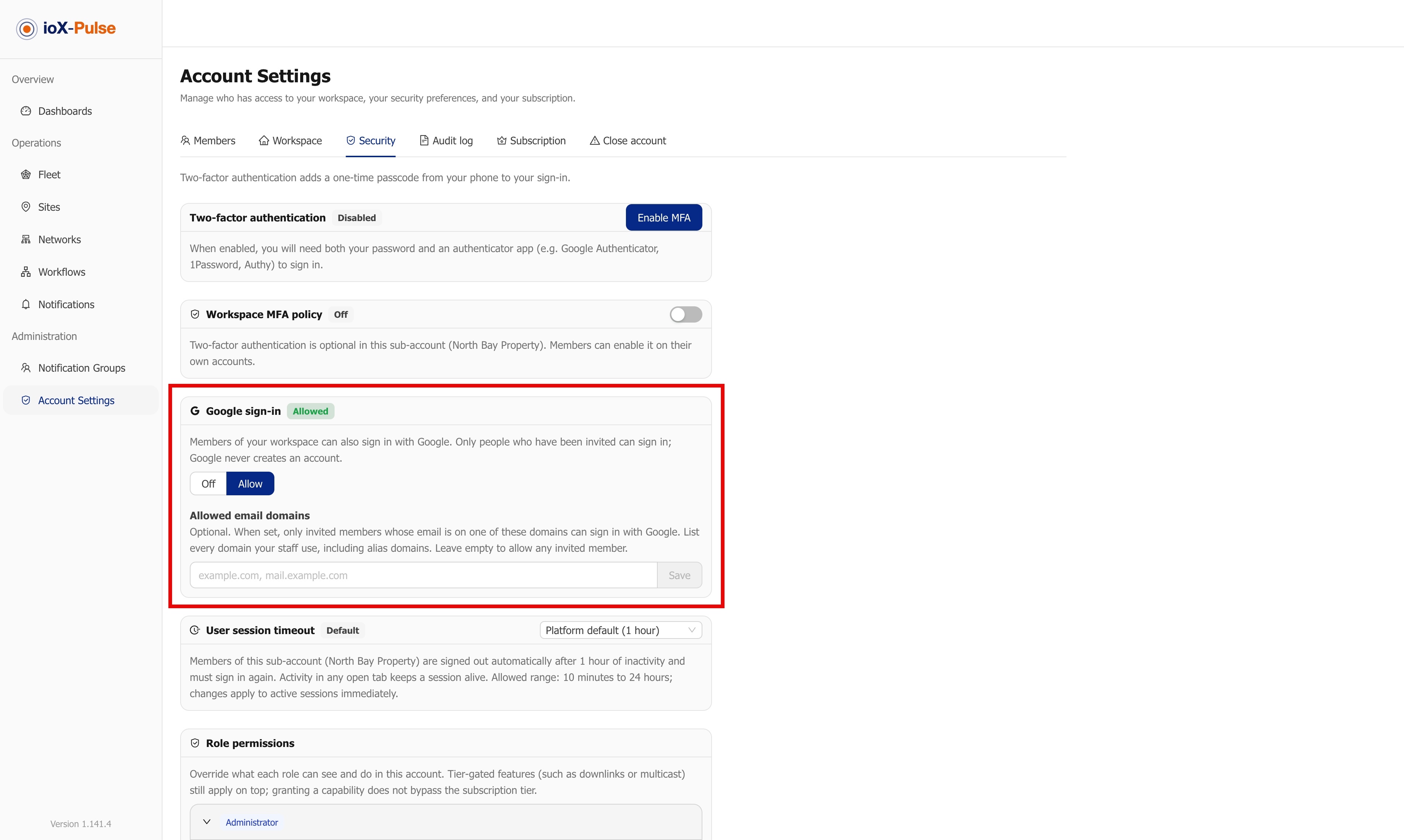
- Off (the default): members sign in with their email and password only.
- Allow: members can also use Sign in with Google. Only people you have invited can sign in; Google never creates an account, and passwords keep working.
With Allow on, you can list Allowed email domains (for example example.com, mail.example.com). When set, only invited members whose email is on one of those domains can use Google sign-in; everyone else keeps using their password. List every domain your staff use, including alias domains. Leave it empty to allow any invited member.
If the card says Not in plan, single sign-on is not included in your subscription; ask your provider.
To stop one person using Google sign-in, open Settings → Members, find them, and choose Disconnect Google from the three-dot menu. This applies to every workspace they belong to with you, signs them out everywhere, and leaves their password in place, so they can sign in with it straight away. Their next Google sign-in links the Google account again, which is also how you fix a member whose Google account changed.
If a member's company blocks unapproved apps in Google Workspace, point their Google admin to Allowing sign-in from Google Workspace.
Setting the session timeout
On Settings → Security, the User session timeout card controls how long a member's session can sit idle before they're signed out automatically. Pick a duration between 10 minutes and 24 hours, or leave it on the platform default (1 hour). The change applies to everyone in your workspace immediately, including sessions that are already signed in.
If your team keeps dashboards open on unattended screens, note that an idle dashboard counts as an idle session: set a longer timeout for the workspace if those screens must stay signed in across the day.
Frequently asked
Can I change my email address? Yes, from the Profile page. You'll be asked to confirm the change with your current password, and you'll be signed out of other sessions when it takes effect.
I clicked Sign in with Google and it says I'm not a member of this workspace. The Google account you picked does not match a member here. Google shows an account picker every time, so check you chose the account whose email matches your invitation. If you were never invited, ask your Workspace Admin; Google sign-in cannot create an account for you.
Can I have one account across multiple workspaces? Yes. If your provider gives you access to more than one workspace, the user menu at the top-right shows a workspace switcher.
Who do I contact if none of this works? Your Workspace Admin first, then your provider.